Merge & join videos
Drop in any number of clips and they line up end-to-end on the magnetic Main track. Combine phone videos, screen recordings and camera footage of different sizes and frame rates into one video.
Free · Private · Runs in your browser
Merge multiple videos, trim and split clips, add music, overlays, titles and transitions, then export a finished MP4 or WebM up to 4K — all on your own computer. No sign-up, no watermark, no file size limit.
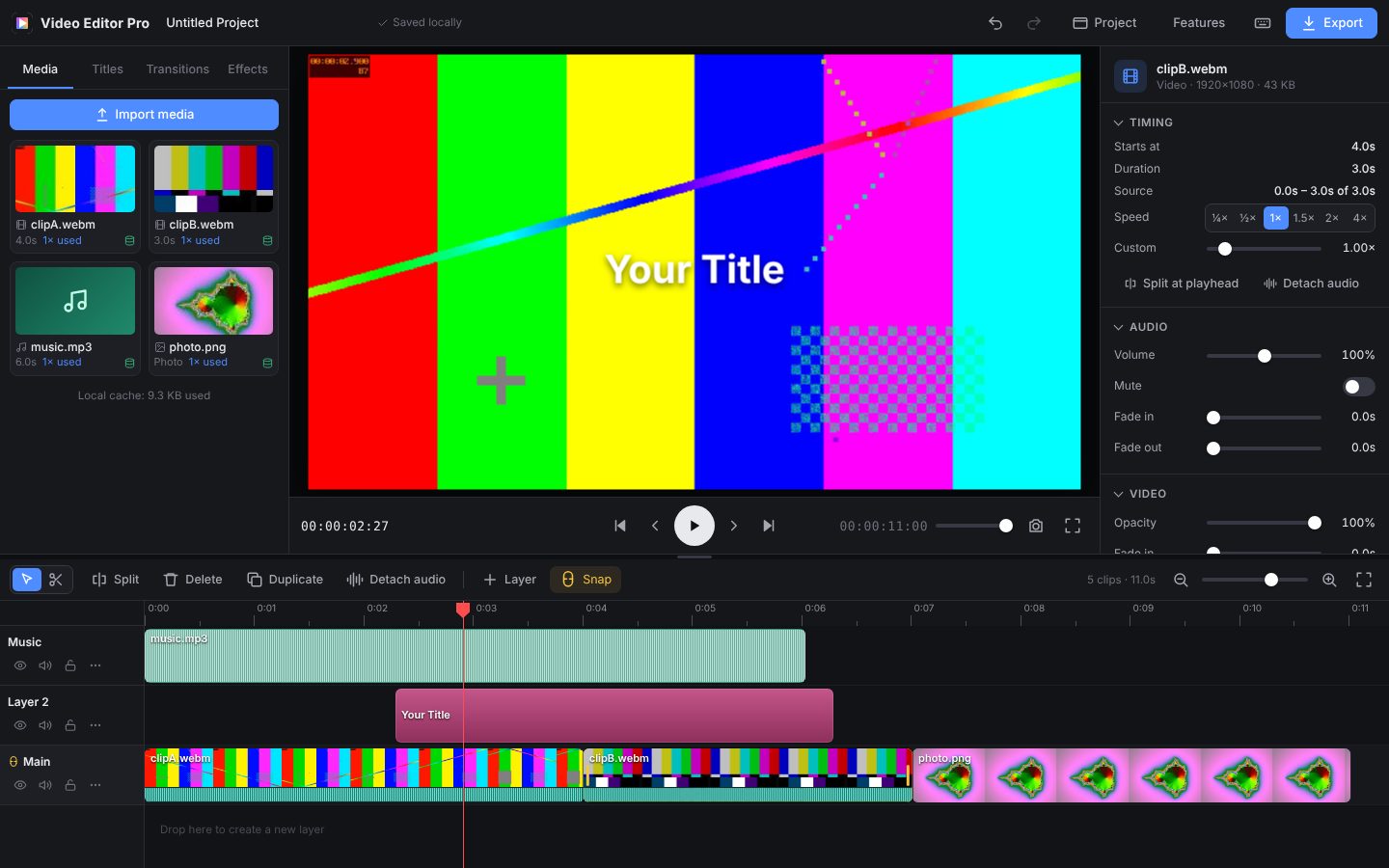
A clean, Final Cut–style workspace: media library on the left, viewer in the middle, inspector on the right and a multi-layer timeline below.
Drop in any number of clips and they line up end-to-end on the magnetic Main track. Combine phone videos, screen recordings and camera footage of different sizes and frame rates into one video.
Drag clip edges to trim, press S to split at the playhead or use the blade tool (B). Drag to reorder; gaps on the Main track close automatically (ripple editing).
Stack video, photos, titles and audio on as many tracks as you like. Upper layers draw on top for overlays and picture-in-picture; sound from every layer is mixed together.
Add background music, voice-over or sound effects. Set volume up to 200 %, fade in and out, mute clips or whole tracks, and detach audio from a video into its own track.
One-click PiP corners and split-screen halves, or set scale, position, rotation, flip and opacity yourself. Choose fit, fill or stretch for each clip.
Cross dissolve, dip to black, wipe, slide and zoom with adjustable duration. On the Main track clips overlap for a true cross-fade of picture and sound.
Title, lower third, subtitle, big bold, typewriter and banner presets. Change font, size, color, alignment, position, background box and shadow, with fade, slide, pop or typewriter animation.
Nine one-click looks — Vivid, Warm, Cool, B&W, Noir, Sepia, Faded, Dramatic, Dream — plus brightness, contrast, saturation, hue, sepia, black & white and blur controls.
Slow motion and fast forward from 0.1× to 8× with quick presets (¼×, ½×, 1.5×, 2×, 4×). The timeline updates the clip length instantly.
Mix still images into your video with any duration, or add solid-color clips as backgrounds and spacers.
Snapping, frame-accurate stepping, jump between edit points, J/K/L shuttle, duplicate, nudge, unlimited undo/redo and right-click menus on every clip and track.
Your project and imported media are saved in your browser automatically. Close the tab and come back later — everything is restored. Clear the cache anytime.
The timeline is generic: any track can hold video, audio, photos or titles.
Open the editor and drag your videos, music and photos onto the page (or click Import media). Nothing is uploaded — files are read directly from your disk.
Clips are placed on the Main track in order. Drag to reorder, trim the edges and split with S. Drag clips up to a layer for overlays.
Add music below, titles from the Titles tab, transitions from the Transitions tab and a color look from Effects. Fine-tune anything in the inspector.
Click Export, choose format, resolution, frame rate and quality, then pick where to save. Your video renders on your device and is saved locally.
| Formats | MP4 (H.264 video + AAC audio) — plays everywhere WebM (VP9 video + Opus audio) |
|---|---|
| Resolution | 480p, 720p HD, 1080p Full HD, 1440p and 4K (2160p) — aspect ratio follows your project |
| Project formats | Landscape 16:9, vertical 9:16 for Reels / Shorts / TikTok, square 1:1, portrait 4:5, cinematic 21:9, or match your footage |
| Frame rate | 24, 25, 30, 50 or 60 fps |
| Quality | Small file, Good, High (recommended) and Best, with a live file-size estimate |
| File size | No limit — in Chrome and Edge the video is streamed straight to disk while it renders |
| Extras | Export with or without audio · save the current frame as a PNG |
Video: MP4, MOV, M4V, WebM, MKV and more · Audio: MP3, WAV, M4A/AAC, OGG, Opus, FLAC · Images: JPG, PNG, WebP, GIF, AVIF, BMP, SVG. Codec support depends on your browser.
Video Editor Pro uses your browser's built-in hardware video decoders and encoders (WebCodecs). Your footage is processed on your own device and never sent to a server — ideal for personal, client and confidential videos.
Previews play in real time with GPU compositing, and exports use hardware-accelerated encoding where available — often faster than real time. No waiting in an upload queue.
| Space | Play / pause | J K L | Reverse · stop · forward |
| S / Ctrl+B | Split at playhead | B / A | Blade / select tool |
| Q / W | Trim start / end to playhead | Del | Delete clip |
| ← → | Previous / next frame | ↑ ↓ | Previous / next edit point |
| Ctrl+Z | Undo | Ctrl+Shift+Z | Redo |
| Ctrl+D | Duplicate | T | Add title |
| + / − | Zoom timeline | Shift+Z | Zoom to fit |
| N | Toggle snapping | Ctrl+E | Export |
Yes. Video Editor Pro is free to use with no sign-up and no watermark.
No. Decoding, editing, previewing and encoding all happen in your browser on your own device. Your files are never uploaded.
Video Editor Pro does not impose a limit. In Chrome and Edge the exported video is streamed straight to a file on your disk, so even very large exports work. The practical limit is your device's disk space and speed.
Common video formats such as MP4, MOV, WebM and MKV; audio such as MP3, WAV, M4A/AAC, OGG/Opus and FLAC; and images such as JPG, PNG, WebP, GIF and AVIF. Support for specific codecs depends on your browser.
MP4 (H.264 video with AAC audio) or WebM (VP9 video with Opus audio), from 480p up to 4K, at 24, 25, 30, 50 or 60 frames per second, with four quality levels.
Yes. Every clip is fitted into the project frame (fit, fill or stretch) and re-timed to the project frame rate, so phone videos, screen recordings and camera footage can be combined in one project.
No. The project autosaves and imported media is cached in your browser, so reopening Video Editor Pro restores your session. You can clear this local cache from Project settings.
The editor adapts to small screens, but a desktop or laptop browser gives the best experience for editing and the fastest exports.
Recent versions of Chrome and Edge on desktop give the best results and unlimited-size exports. Firefox and Safari work where WebCodecs is available; Video Editor Pro automatically picks the best video and audio codecs your browser can encode.
Open Video Editor Pro, drop in your clips and export in minutes.
Open the free video editor